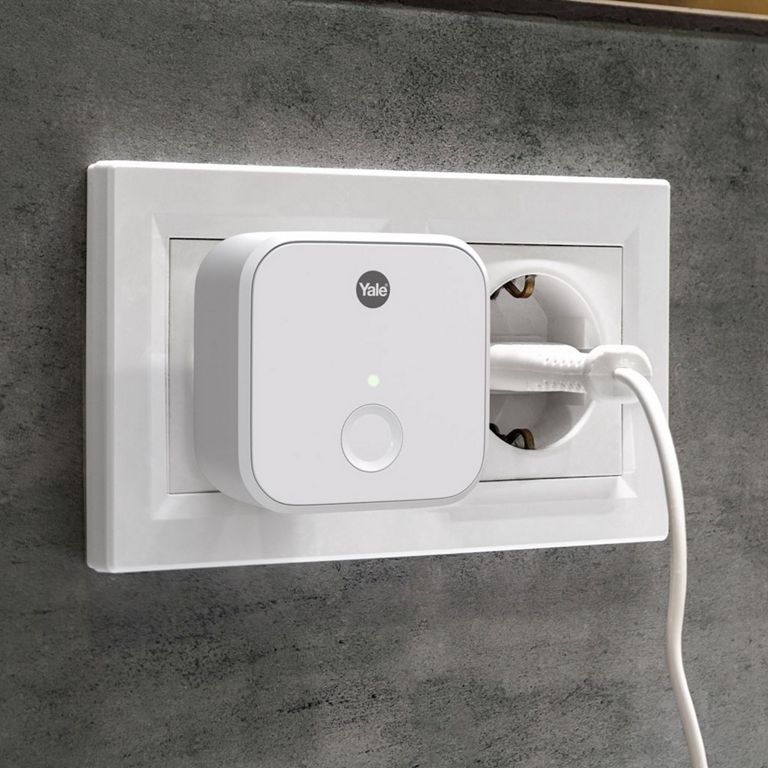
If you’re setting up your Yale Wi‑Fi Bridge or another Yale device on a Samsung phone and see an error related to Smart Network Switch, don’t worry—this is a common and easy issue to fix.
What is Smart Network Switch?
Some Samsung phones include a feature called Smart Network Switch (also known as Adaptive/Intelligent Wi‑Fi on newer models).
It automatically switches your phone to mobile data if your Wi‑Fi connection becomes weak or has no internet.
Most of the time this is useful—but during Yale device setup, it can cause problems.
Why does this cause setup errors?
During setup, the Yale Home app needs to connect to a temporary Wi‑Fi hotspot created by your Yale device.
This temporary Wi‑Fi network:
- Has no internet access (on purpose)
- Exists only to complete the setup process
Because it sees “no internet,” Smart Network Switch tries to help by moving your phone to mobile data… which breaks the connection to the Yale device and causes setup to fail.
How to fix it
Just turn off Smart Network Switch or Adaptive/Intelligent Wi‑Fi while you complete setup:
1. Disable Smart Network Switch
On most Samsung phones:
- Open Settings
- Tap Wi‑Fi
- Tap More options (three dots)
- Select Advanced
- Turn Smart Network Switch or Adaptive/Intelligent Wi‑Fi OFF
2. Restart setup
Return to the Yale Home app and start the setup process again.
Once setup is complete, you can turn the feature back on if you prefer.