Troubleshooting your Yale Linus® Smart Lock L2 Lite
Here you can find troubleshooting help and tips for the Yale Linus® Smart Lock L2 Lite.
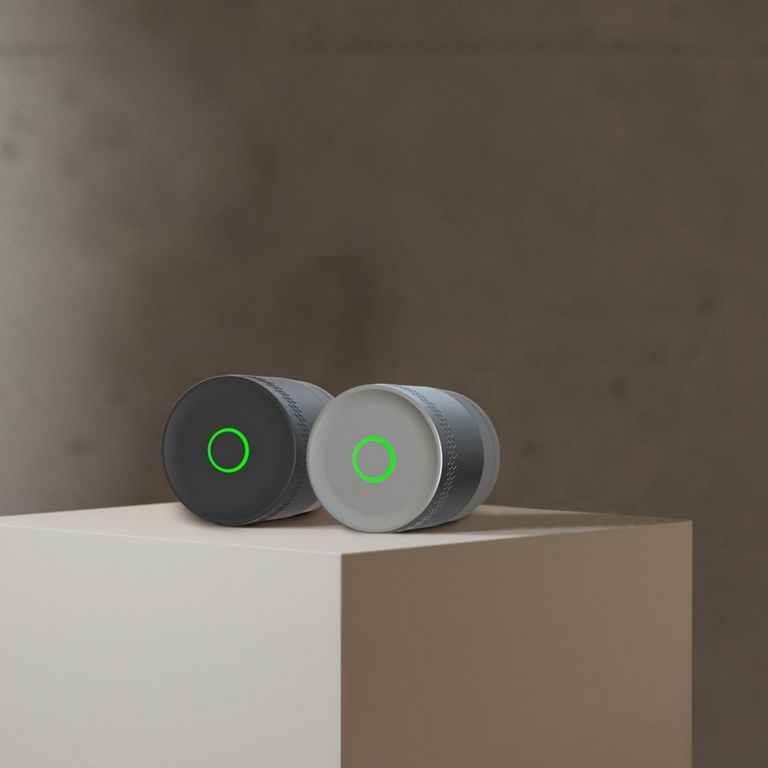
Troubleshooting FAQ
| LED and Sound Indication | Meaning |
|---|---|
| White pulsing LED with start up sound | Lock is powering up |
| Red LED pulse followed by confirmation single tone | Locking |
| Green LED pulse followed by confirmation two tone | Unlocking |
| Flashing orange, along with motor brake sound then error tone | Lock jam |
Check the Batteries
- Replace with fresh batteries.
Using Bluetooth Only (No Wi-Fi Bridge)
- Stay within 4 meters of the lock.
- Ensure Bluetooth is enabled on your phone.
- Disable any active VPNs.
Using a Yale Connect Wi-Fi Bridge
1. Check the Bridge Setup
- Confirm it’s plugged in and powered.
- Ensure it’s within 4 meters of the lock and in range of your Wi-Fi router.
- Use a speed test app (e.g., Ookla) at the Bridge location to confirm a stable internet connection.
- Make sure it’s connected to a 2.4GHz Wi-Fi network.
2. Restart the Network
- Unplug the Bridge.
- Restart your Wi-Fi router and wait 3–5 minutes.
- Plug the Bridge back in.
- Open the Yale Home app and test the lock.
This question has its own page Click Here
When your lock’s battery level drops to 20%, you’ll receive a low-battery notification on your phone. It’s recommended to replace the batteries as soon as you receive the first notification. If you don’t, you’ll begin receiving daily emails and push notifications as the battery level becomes critical. At the critical stage, it’s important to replace the batteries immediately to avoid lock failure.
After replacing the batteries:
- Open the Yale Home app.
- Operate the lock 3 times (lock and unlock) via Bluetooth or Wi-Fi.
- This will update the battery status on our servers and stop the low-battery alerts.
You must use the Yale Home app over Bluetooth or Wi-Fi to clear the alert. Manual operation of the lock will not reset the battery notification.
Still seeing the alert?
If the app still shows a low battery 24 hours after replacing the batteries and operating the lock via the app, please contact Yale Customer Support. They can help determine whether the alert is false or if there’s another issue causing rapid battery drain.
If the Yale Home App shows that your lock is locked when it’s really unlocked (and vice versa), chances are it needs to be re-calibrated. Removing and reinserting batteries will trigger an automatic calibration process and may be all that is needed to rectify this problem.
If this does not resolve the issue, please complete a re-calibration from your Yale Home app. You must be within Bluetooth range of the lock to re-calibrate it.
- Please remove a battery from the lock for 10 seconds.
- Re-insert the battery.
- On your Yale Home app then select your Lock > Settings > Calibrate.
- Follow the onscreen process to recalibrate your lock.
Please Note: Incorrect lock status may also happen if the lock is being setup or tested on a flat surface.
If your guest hasn’t received the invitation to access your lock, it may be due to an issue with the contact information. Here’s how to troubleshoot:
- Double-check the phone number you used to send the invite. Make sure it’s the correct number associated with your guest.
- If the number is incorrect, open the Yale Home App, delete the original invite, and resend it to the correct number.
- Still not working? Ask your guest to ensure their number is saved in your contacts using the international format (e.g., +44 for the UK, +1 for the US).
- Try sending the invite again after updating the contact format.
These steps usually resolve most invite delivery issues.
At Yale, security has been a core priority since the 1860s, beginning with our pioneering work in physical locks. Today, we apply the same commitment to digital security.
We take all reasonable steps to protect the confidentiality, integrity, and availability of your data, in line with current legislation and industry best practices. This includes:
- Deploying industry-standard security protocols
- Partnering with third-party experts to test and review our products
- Continuously monitoring and improving our systems
While we are transparent about our commitment to security, we do not disclose specific technical measures. Sharing such details could inadvertently aid malicious actors.
Your trust is important to us, and we are committed to keeping your data safe.
A factory reset erases all guest and owner data from your lock, restoring it back to its original, out-of-the-box settings. It also removes the lock from any owner or guest keychains that it is affiliated with.
If there is a Yale Smart Keypad paired with the lock, the Keypad must be disconnected before factory resetting the lock. This article provides instructions to disconnect a Yale Smart Keypad.
Factory reset instructions
Follow the steps below to perform a factory reset on your lock:
- Ensure you are within Bluetooth range of the lock (4 metres).
- Open the Yale Home app.
- Select your lock and then the settings icon.
- Scroll down to Utilities, select Factory Reset and follow the onscreen prompts.
- The lock has now been reset and removed from your Yale Home app.
These steps should restore your lock to its factory settings.
If you attempt a factory reset when you’re not connected to Bluetooth, you will receive a "Trouble Connecting to Lock" notification. If possible, try factory resetting the next time you are in Bluetooth range. If you have moved and you are unable to factory reset while in Bluetooth range of the lock, select "Reset Anyway" when you receive the notification.
Pre-Owned Devices
If you are not the original lock owner because you acquired a previously-owned Smart Lock, you will be notified when trying to add the lock to your Yale Home account, you may trigger a request to the previously linked owner from the Yale Home app, the previous owner will be informed that a new owner wants to the access and setup the lock, please allow up to 30 days for the previous owner to grant permission. If you are not granted permission by the previous lock owner after 30 days, please contact customer support.
Previously-owned Yale Smart Locks need to be factory reset before they can be set up by a new owner. If you tried setting up a previously-owned device that was not factory reset before you acquired it, Yale needs permission from the previous owner to factory reset the device on their behalf.
It may take up to 30 days for the previous owner to respond to your request. If you purchased the lock directly from a person or 3rd party seller, you may wish to contact them and ask them to reset the device in order to expedite the process. Once the device has been factory reset, you will receive a notification to continue setting up the device.
If you purchased the device from a retailer, please contact them about an exchange.
If you received an email requesting to reset a device you used to own, it means that someone is requesting permission to reset a lock that is currently registered under your account. To grant them permission, select "Yes".
By accepting the request, you as an owner of the device, are giving Yale permission to factory reset the lock. This means you will be giving up ownership of the lock and accept that once the lock is reset, all existing users will lose access to it.
Please Note: The request expires after 30 days.
Firmware updates are released periodically, to help improve device performance. When available, firmware updates begin automatically, when the lock owner connects to their lock locally. You can still operate your lock via the app during the update.
Firmware updates can take anywhere from 5-15 minutes. Please be sure to keep your phone near your lock, with the Yale Home app open, throughout the whole update.
In order for the firmware to update, you must be within Bluetooth range of the lock and have Bluetooth enabled on your phone.
The Linus, Linus L2 and Linus L2 Lite are designed to work mainly as smart locks using the app, keypad or automatic features.
You can still use your mechanical key, but turning the key too far can sometimes cause the lock to lose its calibration.
Here’s what that means and how to avoid it.
What Calibration Does
When you calibrate your Linus lock, it learns:
- The unlocked position
- The locked position
- How many turns the lock needs to move between these points
The lock then always uses this exact number of turns.
It does not track the cylinder’s physical position—only the amount of rotation it learned during calibration.
Why Using a Mechanical Key Can Cause Issues
Using the key will not cause problems as long as you turn it within the same number of turns the lock learned during calibration.
But miscalibration can occur if:
- The cylinder can turn further than the amount you calibrated
- Someone uses the key and turns it past the calibrated limit
- The cylinder type doesn’t rotate on the inside when you use the key on the outside (common with some dual‑clutch cylinders)
In these cases, the lock ends up in a different position than expected — so the next motor‑driven lock/unlock may not align correctly.
Which Cylinders Are More Prone to Miscalibration?
Miscalibration is more likely if:
- The cylinder allows multiple full rotations (more than 2 turns)
- The cylinder has no physical “stop points”
- The lock was calibrated for fewer turns than the cylinder physically allows
- The cylinder’s clutch prevents the internal thumbturn from moving when the external key is used
How to Prevent Miscalibration
Best Practice
Use the Yale Home app, keypad or auto‑unlock as your primary way to operate the lock.
The mechanical key is best kept for backup or emergencies.
If You Need to Use the Key Regularly
To avoid calibration problems:
-
Calibrate using the full number of turns your lock cylinder supports.
(Example: If the lock needs 3 full turns, calibrate all 3.) -
Make sure everyone in the home turns the key only within that same range.
-
If the lock frequently becomes uncalibrated, check:
- The number of physical turns your cylinder requires
- Whether recalibration is needed
- Whether your cylinder type allows unlimited rotation or has a dual‑clutch design
-
If possible, choose a cylinder with fixed end‑stops so the key cannot turn past the calibrated range.
If you need additional support
You can get a more visual help related to our products at our download center and in our library for support videos.

